
DM OData Excel Client
 DM OData Excel Client


DM OData Excel Client
This software is free to use for all IFS Cloud customers and consultants.
Get your IFS Cloud data into the software your teams already use.
The dm OData Excel Client lets you use without needing help from developers or special add-ins. Most ERP problems happen because teams are stuck using . This tool helps by letting teams work with real data in a program they already know. This Excel workbook lets finance, supply chain, and service teams dive into real-time data without needing developer help or advanced add-ins. This macro-enabled workbook features an interactive dashboard, secure OAuth2 authentication, and a pre-configured set of starter endpoints, enabling teams to start viewing data immediately.
Who Is This For?
- Business users who want trusted, refreshable IFS data inside Excel.
- Consultants configuring a light-weight reporting kit for client teams.
- Citizen developers who extend the endpoint catalog and share new packages.
Key Features
- Direct Excel Connection: Access IFS Cloud data securely in Excel, with simple authentication - no add-ins required.
- Smart Data Refresh: Instantly update your sheets with current IFS data using interactive dashboard controls.
- Preconfigured Queries: Start with ready-made queries for companies, customer orders, parts, and inventory.
- Reusable Endpoint Catalog: Customize with filters, HTTP methods, and a computed call column for auditing.
- Built-In Package Builder: Generate distributable
.xlsmfiles plus documentation with ease.
What You Can Do
- Sign in with your IFS Cloud credentials and pull fresh data in a couple of clicks.
- Browse a library of ready-made queries for companies, customer orders, customers, parts, and inventory.
- Extend this library by adding new queries tailored to your needs
- Refresh worksheets on demand and keep formatted tables for reporting, pivots, or charts.
Everyday Examples
- Finance controller: Review the latest company list and customer balances before month-end, then filter or pivot results—all within Excel.
- Customer service lead: Track open customer orders using built-in filters, quickly highlight urgent requests, and assign follow-up tasks directly from your dashboard.
- Inventory planner: Compare production-ready inventory parts against planned demand, bringing live IFS data into your existing Excel stock spreadsheets.
- Project administrator: Share key part catalog details with subcontractors, exporting clean lists for collaboration with one click.
Why Use It?
- Smooth integration: Connect, fetch, and analyze ERP data in Excel with guided steps.
- Ready-to-use: Start with sample queries for common entities- no custom setup required.
- Custom Endpoint Catalog: Expand or tailor queries to meet business needs.
- Automated packaging: Distribute up-to-date workbooks with built-in documentation.
Getting Started
Download the workbook and start pulling IFS Cloud data today.
- Open the workbook; the Dashboard tab walks you through the connection setup.
- Enter your OAuth2 settings (Token Endpoint, Client ID, Client Secret, Scope) and base API URL, usually
https://<tenant>.ifs.cloud/main/ifsapplications/projection/v1/. - Pick an endpoint in the
Endpointssheet, press Get Data, and let the workbook load results into a clean worksheet you can analyze immediately.
How It Works
Configure access in IFS Cloud.
- First, create an IAM Client. Configure as on the pictures below. You need to create a Service User and connect to the IAM Client. From this configuration, use Client ID and Secret to configure access from Excel to your IFS Cloud instance.
 |
 |
 |
-
Open the workbook, the Dashboard tab launches automatically.
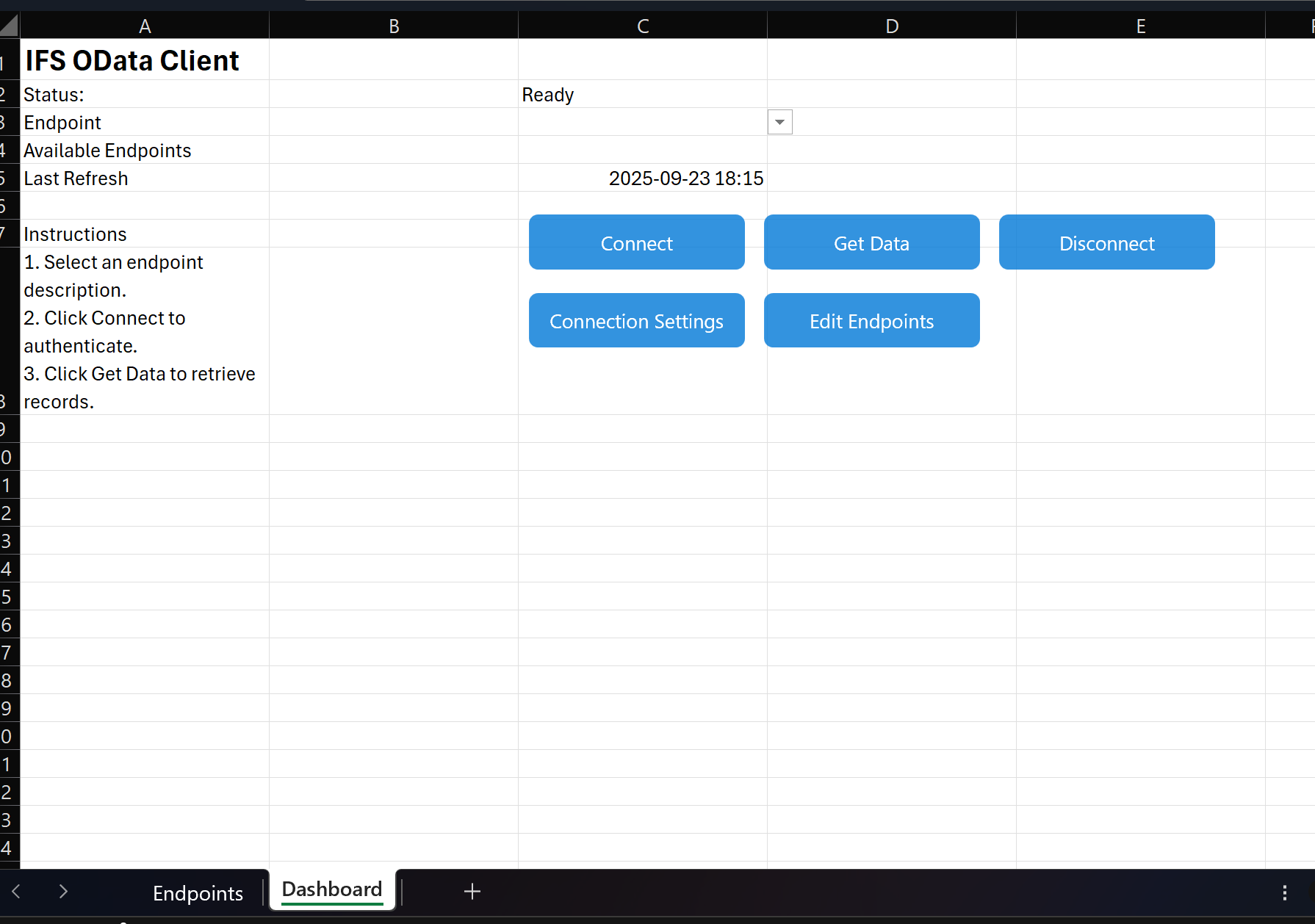
- Select Connection Settings to provide OAuth2 credentials (Token Endpoint, Client ID, Client Secret, Scope) - examples below
| Token Endpoint | https://<tenant>.ifs.cloud/auth/realms/<tenant>/protocol/openid-connect/token |
| Client ID | acme_integration |
| Client Secret | ******** |
| Scope | openid |
| Base API URL | https://<tenant>.ifs.cloud/main/ifsapplications/projection/v1/ |
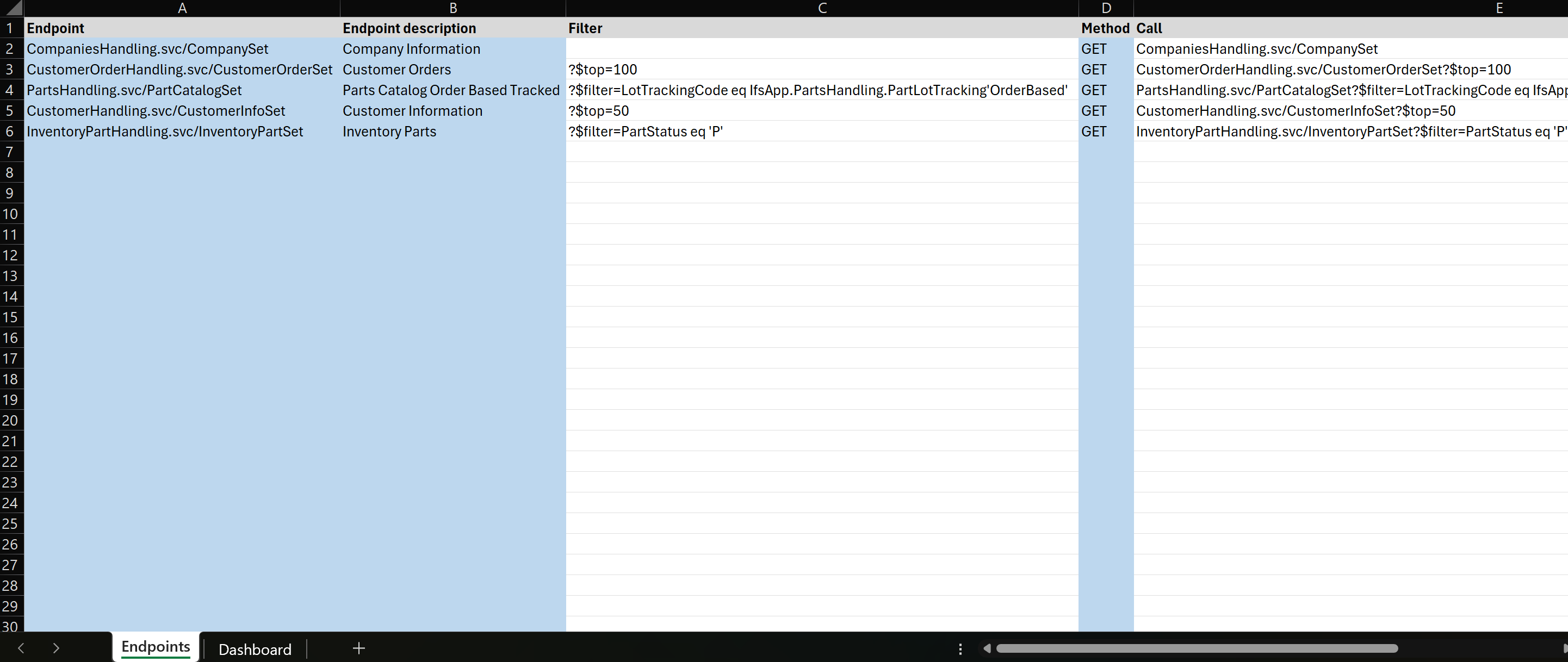
- Review the
Endpointssheet. You could add as many new endpoints as you want. Remember only to create unique Ednpoint descriptions.
- Click Connect on the dashboard to authorize via client credentials.
- Choose an endpoint description and press Get Data to load results into a new worksheet (optionally as a formatted table).
Prepare Your IFS Cloud Account
- Create an integration user (or reuse an existing service account) in Security > Users and make sure it is active for every company whose data you plan to read.
- In Security > OAuth 2.0 > Clients, create a client with grant type
Client Credentials, note the generated Client ID and Client Secret, and add a descriptive scope name (for exampleifs.odata.read). - Still in the client record, link the integration user under Allowed Users/Groups so the token inherits that user's permissions.
- Grant projection access to the integration user via Security > Permission Sets. Add the permission sets that expose the projections you intend to call (for example
COMPANY_INFO,CUS_ORDERS,INVENTORY_PARTor your organization's custom sets). - Verify the projections are enabled under Solution Manager > OData Services > Projection Authorization by searching for each service (e.g.
CompaniesHandling,CustomerOrderHandling,InventoryPartHandling). - Test the credentials with a small query using the Excel dashboard or a tool like Postman before sharing the workbook with colleagues.
Feature Highlights
- Dashboard landing page with Connect, Get Data, Disconnect, Connection Settings, Edit Endpoints, and Build Package actions.
- Endpoint catalog on the
Endpointssheet (columns: Endpoint, Description, Filter, Method, Call) feeding the dashboard drop-down. - OAuth2 client-credential authentication with encrypted persistence of secrets and tokens across sessions.
- Worksheet writer that cleans common OData technical fields, auto-sizes columns, and optionally converts results into Excel Tables.
- Runtime toggles for user messages and table output stored in the workbook and reused on the next launch.
- Package builder that saves a versioned copy of the workbook plus refreshed functional and technical documentation files.
Requirements
- Microsoft Excel for Windows with macros enabled.
- IFS Cloud environment with OData access and client credentials.
- Excel Trust Center setting "Trust access to the VBA project object model" set to on (needed for module import, reference fixes, and packaging scripts).
Disclaimer
This Excel workbook is provided as-is and free of charge. It only reads data from IFS Cloud and does not modify your IFS environment or data. No warranties are provided, and the developer is not responsible for any damage or loss resulting from use of this tool. Always verify your system’s permissions and endpoint settings before sharing with colleagues.
Troubleshooting Tips
- Make sure Excel trusts programmatic access: File > Options > Trust Center > Trust Center Settings > Macro Settings > enable
Trust access to the VBA project object model. 401 Unauthorizederrors usually mean the client ID, secret, or scope needs updating.400 Bad Requesthints at an incorrect endpoint or filter; start with the included samples, then adjust gradually.- Empty output - Confirm the endpoint returns JSON and that filters are not excluding all rows.
Ready to broaden access to IFS Cloud insights? Build, configure, and share the Excel client now.
Download the Excel workbook, connect your IFS Cloud account, and give your team direct access to business data—ready for analysis and collaboration in minutes.
Did I keep all the important details? Please let me know if you'd like me to make any changes.
Definitions
IFS Cloud OAuth2 authentication is a secure authorisation approach that allows users to access resources without revealing their credentials in plain text. Instead of providing the user's credentials in plain text, the users authenticate against a central provider of identities, which grants the Excel workbook access tokens to securely access limited IFS Cloud data. This keeps the user's credentials secure and provides access only for what the user's permission permits.
An endpoint in OData is a specific URL that represents a collection of data or a service you can interact with. It’s like a door to access specific information from a database or system.
For example, in the IFS OData Excel Client, an endpoint might look like this:
https://<tenant>.ifs.cloud/main/ifsapplications/projection/v1/CompaniesHandling.svc/CompanySet
This endpoint would let you get a list of companies from the IFS Cloud system. You use these endpoints to read or sometimes write data, depending on what the system allows.